How to Reset a Router. To factory reset a router: locate the small recessed reset button (usually on the back or bottom), press and hold it with a paperclip or pin for 10–30 seconds until the lights flash or turn off, then release and wait 2–3 minutes for the router to fully reboot. This erases your WiFi name, password, and all custom settings, restoring the router to its out-of-the-box state — you’ll need to log in with the default credentials printed on the device label and reconfigure your network from scratch.
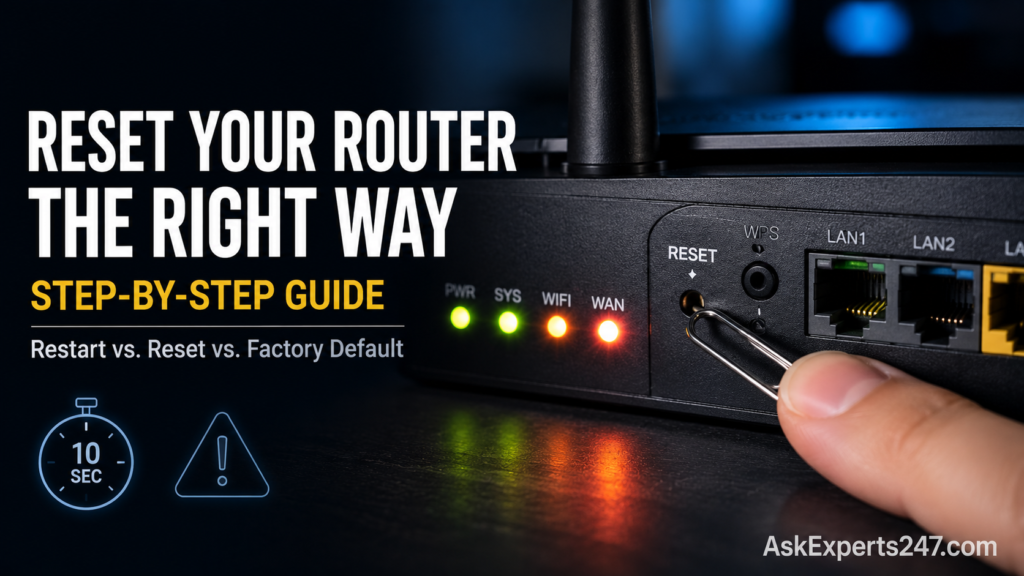
QUICK FIX SUMMARY (How to Reset a Router)
Before you factory reset, try a simple restart first — it solves most problems without erasing anything:
- Unplug the router’s power cable, wait 30 seconds, plug it back in. Wait 2 minutes for it to fully reboot.
If that doesn’t help and you need a full factory reset:
- Find the small recessed reset button (back or bottom of the router).
- Press and hold it with a paperclip or pin for 10–30 seconds until the lights flash.
- Release and wait 2–3 minutes for the router to reboot completely.
- Log in using the default credentials printed on the router’s label, and reconfigure your network.
The full guide below explains exactly when each method is appropriate and walks through every step in detail.
INTRODUCTION
“Reset the router” gets used loosely to mean two very different things — and mixing them up either wastes your time or, worse, wipes out a network configuration you didn’t actually need to lose.
A simple restart clears temporary glitches in seconds and keeps every setting intact. A full factory reset wipes the router back to its out-of-the-box state — erasing your WiFi name, password, port forwarding rules, and every other custom setting — and is a far more serious undertaking that should be a last resort, not a first instinct.
This guide walks through exactly when each is appropriate, then gives you the precise step-by-step process for a true factory reset, including what to expect immediately afterward and how to get your network back up and running.
Estimated time: Restart: 1–2 minutes | Factory reset: 5 minutes to reset, 20–60 minutes to fully reconfigure your network Difficulty: Beginner Works with: Every router brand
RESTART VS. SOFT RESET VS. FACTORY RESET — KNOW WHICH ONE YOU NEED
These three terms get used interchangeably online, which causes a lot of unnecessary confusion and unnecessary data loss. Here’s the clear distinction:
Restart (also sometimes called a “soft reset” or “power cycle”) Unplugging the router, waiting briefly, and plugging it back in. This clears the router’s temporary memory and refreshes its connection to your ISP — similar to restarting a computer. Nothing is erased. Your WiFi name, password, and all custom settings remain exactly as they were.
Factory reset (also called a “hard reset”) Restoring the router completely to its original out-of-the-box state, using the physical reset button, the admin panel, or the manufacturer’s app. This erases everything — your WiFi name (SSID), password, admin credentials, port forwarding rules, DNS settings, parental controls, guest network configuration, all of it. Every device on your network will need to be manually reconnected afterward.
The golden rule: Always try a simple restart first. It resolves the vast majority of everyday router problems — slow speeds, intermittent drops, devices not connecting — without any of the downside of a full factory reset. Reserve the factory reset for the specific situations covered in the next section.
WHEN YOU SHOULD FACTORY RESET YOUR ROUTER
A factory reset is the right call when:
- You’ve forgotten your admin login password and have no other way back into the router’s settings.
- The router has been compromised by malware or unauthorized access, and you need to guarantee a clean slate.
- You’re selling, donating, or returning the router and want to permanently remove your personal network information.
- Persistent software glitches or firmware corruption continue after restarts, updates, and other troubleshooting — random reboots, signal that drops every few hours, or WiFi that stops broadcasting without explanation.
- You’re switching internet service providers and the router’s old configuration is conflicting with the new connection.
- Configuration errors have piled up to the point that manually finding and undoing them would take longer than starting fresh.
WHEN YOU SHOULD NOT FACTORY RESET (TRY THIS INSTEAD)
A factory reset is overkill — and creates unnecessary work — for these common situations. Try the listed alternative first:
Slow internet or occasional buffering → Try a simple restart (unplug 30 seconds, plug back in). This alone resolves most everyday slowdowns.
WiFi dropped temporarily or one device won’t connect → Restart the router, and separately try forgetting and reconnecting to the network on the affected device.
You want to change your WiFi password → Log into the router’s admin panel and change it directly — no reset needed at all.
You want to add parental controls or a guest network → These are configuration changes made through the admin panel, not reasons to reset anything.
The router feels “laggy” after being on for weeks → A scheduled restart (many routers support an automatic weekly reboot setting) solves this without ever needing a factory reset.
If you’ve tried a restart and the problem persists, that’s the point at which a factory reset becomes a reasonable next step.
BEFORE YOU RESET: A 2-MINUTE PREPARATION CHECKLIST
A factory reset is irreversible once started — you cannot “undo” it back to your custom settings unless you backed them up beforehand. Spend two minutes on this checklist first:
- [ ] Back up your current configuration, if your router supports it. Most admin panels have a System or Maintenance section with a “Backup Settings” or “Export Configuration” option that saves your current setup to a file you can later re-import.
- [ ] Write down your current WiFi name (SSID) and password somewhere offline (a notes app, a piece of paper) — you’ll want these for reference even if you choose to recreate them after the reset.
- [ ] Note any custom settings you’ll need to redo, especially port forwarding rules (for gaming, security cameras, or remote access), any static IP address reservations, and custom DNS settings.
- [ ] Locate your default admin credentials — found on a sticker on the bottom or back of the router. You’ll need these to log back in immediately after the reset.
- [ ] Have your ISP account information handy, since some connection types (particularly DSL or certain fiber setups) require you to re-enter ISP-provided login credentials after a reset.
- [ ] Confirm you have enough time — budget 20–60 minutes total, factoring in reconfiguring the router itself and reconnecting every device in your home afterward.
METHOD 1 — FACTORY RESET USING THE PHYSICAL RESET BUTTON
Why this works: Every router has a built-in hardware reset button specifically designed to restore factory defaults, even if you can’t access the admin panel for any reason (forgotten password, corrupted firmware, network misconfiguration). This is the most universal method and works regardless of whether you have login access.
Steps:
- Make sure the router is powered on and plugged in.
- Locate the reset button. It’s typically a small, recessed hole on the back or bottom of the device — small enough that it requires a pin, paperclip, or similarly thin object to press, which prevents accidental resets.
- Insert a paperclip or pin into the hole and press and hold the button.
- Hold for 10 to 30 seconds, depending on your specific router model (check the exact duration in the brand-specific notes and cheat sheet further down this guide — many 2025/2026 models have standardized around either a 10-second soft-factory reset or a longer 30-second full hard reset).
- Watch the router’s LED lights — they will typically flash, blink rapidly, or turn off entirely, signaling that the reset is underway.
- Release the button once you see this light change.
- Wait 2–3 minutes for the router to fully reboot. Do not unplug it or interrupt the process during this window.
- Once the lights stabilize again, the router has been restored to its factory default state.
METHOD 2 — FACTORY RESET THROUGH THE ADMIN PANEL (SOFTWARE RESET)
Why this works: If you still have access to your router’s admin panel, you can trigger a factory reset entirely through software, without needing physical access to the device or a paperclip. This method is preferable when available, because it gives you the opportunity to back up your settings immediately beforehand, right within the same interface.
Steps:
- Open a web browser and enter your router’s IP address — commonly
192.168.1.1or192.168.0.1. (If you’re not sure of your exact address, see our guide on logging into your router for every method to find it.) - Log in using your current admin username and password.
- Look for a section labeled System, Administration, Advanced, or Maintenance — the exact label varies by brand.
- Find an option labeled Factory Reset, Restore Default Settings, or Restore Factory Defaults.
- Before confirming, look for a nearby Backup Settings or Export Configuration option and use it now if you might want to restore your custom setup later.
- Click to confirm the factory reset. You’ll typically see a warning that this action erases all current settings — confirm again if prompted.
- The router will automatically reboot and return to its factory default configuration. This process typically takes 2–5 minutes.
METHOD 3 — FACTORY RESET USING THE MANUFACTURER’S APP
Why this works: Most modern routers — and virtually all mesh systems — are designed to be managed primarily through a smartphone app rather than a traditional browser-based admin page. These apps include a factory reset option that doesn’t require a paperclip or even physical proximity to the router in some cases.
Steps (general process — exact menu names vary by brand):
- Open your router’s official app (examples: Netgear Nighthawk, TP-Link Tether or Deco, Linksys app, eero app, Google Home for Nest WiFi).
- Make sure the app is connected to your router/network.
- Navigate to your router’s device settings within the app — usually by tapping the router’s name or icon in a device list.
- Look for a menu labeled Advanced, Tools, System, or similar.
- Find Factory Default Restore, Reset, or Restore Defaults.
- Confirm the action when prompted — most apps will warn you this is irreversible before proceeding.
- The router will restart and return to its factory state, which the app may continue to show progress for during the process.
Note: For mesh systems like eero and Google Nest WiFi, app-based reset is typically the only supported method — many of these devices either lack a traditional physical reset button entirely or place much greater emphasis on app-driven management generally.
WHAT HAPPENS IMMEDIATELY AFTER A FACTORY RESET
Once the reset completes, here’s exactly what to expect:
- Your WiFi network (the one you previously connected devices to) will disappear. It’s replaced by the router’s original factory default network name, commonly something like “NETGEAR12” or a brand-specific default printed on the device label.
- The default network is either open (no password) or uses a simple printed default password — found on the same label as the admin credentials.
- All previously connected devices will show “no internet” or fail to connect, because they’re still trying to reach a network name and password that no longer exists.
- You’ll need to connect to the new default network first, then log into the admin panel using the default admin credentials (also on the label) to begin reconfiguring everything.
This is expected and normal — it’s exactly what a factory reset is designed to do.
HOW TO SET UP YOUR ROUTER AFTER RESETTING
- On your computer or phone, open WiFi settings and connect to the router’s new default network name (printed on the device label).
- Open a web browser and go to the router’s default IP address (commonly
192.168.1.1or192.168.0.1) — or open the manufacturer’s app if you prefer. - Log in using the default admin username and password from the label.
- Immediately change the default admin password to something strong and unique — this is the single most important security step, since default credentials are publicly known and are the first thing automated attack scripts try against any router they find. (See our security checklist below for more on this.)
- Set up your WiFi network name (SSID) and a strong new password. You can reuse your old network name and password if you wrote them down earlier, which makes reconnecting your devices faster since many will auto-reconnect using saved credentials.
- Restore any backed-up configuration file if you exported one before resetting, through the same Backup & Restore section in the admin panel.
- Manually recreate any settings you didn’t back up — port forwarding rules, static IP reservations, parental controls, guest network, custom DNS.
- Check for and install any available firmware update — routers often ship with slightly older firmware than what’s currently available, and a reset is a good opportunity to update.
- Reconnect each device in your home one at a time — phones, laptops, smart TVs, streaming devices, smart home gadgets, security cameras. Budget extra time here if you have many connected devices.
RESETTING WHEN YOU’VE FORGOTTEN YOUR PASSWORD
If you can’t log into your router’s admin panel because you don’t know (or remember) the password, a factory reset using the physical reset button (Method 1) is your only path back in — this works precisely because it doesn’t require any login access at all.
Steps specific to this situation:
- Follow Method 1 above in full — locate the reset button, hold for the appropriate duration, and wait for the reboot.
- Once reset, the router returns to its original default admin credentials — printed on the label, typically something like username “admin” and password “admin,” “password,” or a unique code specific to your device.
- Log in with these default credentials.
- Immediately set a new password you’ll actually remember, ideally storing it in a password manager so this situation doesn’t repeat itself.
If you don’t have physical access to the router (for example, it’s at a property you don’t currently have access to, or it’s a business device managed remotely), check whether your router supports cloud-based management through the manufacturer’s account system, which sometimes allows a remote reset — though this depends heavily on the specific model and whether remote management was previously enabled.
BRAND-SPECIFIC RESET NOTES
Netgear
- Reset button typically located near the power socket.
- After reset, default network name and login are printed on the device label.
- The Nighthawk app supports both reboot and factory reset directly, without needing the physical button.
TP-Link
- Tether app: Open the app → tap your router → Tools → System → Factory Default Restore → confirm.
- Deco app (mesh systems): Tap the menu icon (top-left) → More → Advanced → Factory Default Restore → confirm.
- TP-Link explicitly recommends backing up your configuration under System → Backup & Restore before resetting, since the action is irreversible without a prior backup.
Linksys / Verizon
- Reset buttons on these models are sometimes hidden at the base or underside of the device for aesthetic reasons rather than on the back — check all sides if you can’t immediately locate it.
- Verizon-provided routers may use ISP-specific default credentials that override the standard manufacturer defaults — check your installation documentation or the ISP-branded label specifically.
eero / Google Nest WiFi (Mesh Systems)
- These are app-managed devices. Factory reset and even simple reboots are typically performed entirely through the eero app or Google Home app, respectively, rather than a physical button or traditional browser-based admin page.
- Xfinity and AT&T often integrate app-driven resets with account authentication, meaning you may need to confirm your identity through your ISP account during the process.
ASUS
- Reset button commonly placed near the power socket, similar to Netgear.
- ASUS routers support configuration backup/restore through the web admin panel under Administration → Restore/Save/Upload Setting.
RESET DURATION CHEAT SHEET
Hold times vary by brand and model. If you’re not sure of your exact router’s required duration, these are the most common standards:
- 10 seconds — Used by some newer models for a “soft factory reset” that restores network settings only (SSID, password) while preserving firmware-level configurations.
- 10–15 seconds — The most common general-purpose hold time across most consumer router brands for a standard factory reset.
- 30 seconds — Used by some models for a full hard reset that also restores firmware to its original shipped version, in addition to all network settings.
Always check your specific router’s label or manual if you want precision — but as a safe general rule, holding the button for the full 30 seconds covers virtually every router’s requirements, even if your specific model only technically needs 10–15.
COMMON PROBLEMS AFTER A RESET
Router won’t reboot / lights stay off: Wait a few extra minutes — some models take longer than others. If there’s truly no response after 5 minutes, try unplugging the power cable, waiting 30 seconds, and plugging it back in.
Can’t find the default network after reset: Double-check you’re looking at the WiFi list on your device, not just relying on memory of the old network name — the new default name is often quite different from what you had before. If it’s still not appearing, the reset may not have completed successfully; repeat Method 1, holding for the full duration.
Default password doesn’t work: Confirm you’re reading the label correctly — default passwords sometimes use mixed case, numbers, or symbols that are easy to misread. If the printed default genuinely doesn’t work, contact your ISP or the manufacturer’s support, as ISP-provided routers occasionally override the printed defaults with account-specific credentials not shown on the device.
Internet doesn’t work after reconfiguring: Some ISP connection types (particularly older DSL setups) require you to re-enter ISP-provided login credentials after a factory reset, separate from the router’s own admin login. Check your ISP’s setup documentation for this specific step.
Some devices won’t reconnect automatically: This is expected if you changed the network name or password rather than recreating the exact originals. Manually reconnect affected devices using the new credentials.
SECURITY CHECKLIST AFTER EVERY RESET
A factory reset returns your router to known, publicly documented default settings — which makes the period immediately after a reset a meaningful security window if left unaddressed. Complete this checklist every time:
- [ ] Change the default admin username and password immediately. Default credentials are publicly known for most router models and are the first thing automated attack tools attempt.
- [ ] Set a strong, unique WiFi password — avoid anything tied to your name, address, or easily guessed patterns.
- [ ] Check for and install firmware updates right after reconfiguring — routers often ship with outdated firmware relative to what’s currently available.
- [ ] Disable remote management unless you specifically and intentionally need it.
- [ ] Disable WPS if you don’t actively use it for extender or device pairing.
- [ ] Set up a guest network for visitors and any less-trusted smart home devices, separating them from your primary network.
TROUBLESHOOTING CHECKLIST
- [ ] Confirmed whether you actually need a restart (no data loss) or a full factory reset (erases everything)
- [ ] Backed up current configuration through the admin panel, if available
- [ ] Wrote down current SSID, password, and any custom settings before resetting
- [ ] Located default admin credentials on the router’s label
- [ ] Performed the reset using the physical button, admin panel, or app
- [ ] Waited the full 2–3 minutes for the router to reboot after resetting
- [ ] Connected to the new default network and logged in with default credentials
- [ ] Changed the default admin password immediately after logging back in
- [ ] Reconfigured WiFi name, password, and any custom settings
- [ ] Reconnected all household devices to the network
- [ ] Checked for and installed firmware updates
FAQ — PEOPLE ALSO ASK
How long do I hold the reset button on a router? Most routers require 10 to 30 seconds, depending on the brand and model. A safe general rule is to hold it for the full 30 seconds — this covers the requirements of virtually every consumer router, even ones that technically only need 10–15 seconds. Release once you see the LED lights flash, blink rapidly, or turn off.
What’s the difference between restarting and factory resetting a router? Restarting (unplugging and plugging back in) clears temporary memory and refreshes the connection without erasing any settings — it’s the equivalent of restarting a computer. A factory reset wipes the router completely back to its out-of-the-box state, erasing the WiFi name, password, and all custom configurations, requiring you to set everything up again from scratch.
Will a factory reset fix slow internet? Sometimes, if the slowness is caused by a configuration error or accumulated software glitch — but a simple restart resolves the vast majority of slow-internet cases without needing a full factory reset. Always try restarting first before resorting to a complete reset.
How do I reset my router if I forgot the password? Use the physical reset button — this is the only method that works without needing any login access. Press and hold it with a paperclip for 10–30 seconds until the lights flash, then log in afterward using the default credentials printed on the router’s label.
Does factory resetting a router remove viruses or malware? Yes, in most cases. A factory reset wipes all software configurations back to the manufacturer’s clean default state, which removes the vast majority of router-targeting malware. If you suspect your router was compromised, change all credentials immediately after resetting and keep firmware updated going forward.
Will I lose all my devices’ WiFi connections after a factory reset? Yes — every device that was connected to your previous network will show “no internet” or fail to connect, because the WiFi name and password they were using no longer exist. You’ll need to manually reconnect each device using either the router’s new default credentials or your newly recreated network name and password.
Can I undo a factory reset and get my old settings back? Only if you backed up your configuration file before resetting, through your router’s admin panel (usually under System or Maintenance → Backup & Restore). Without a prior backup, there’s no way to restore your exact previous settings — you’ll need to manually recreate them.
How do I factory reset a router that’s managed by an app, like eero or Google Nest WiFi? These mesh systems are primarily app-managed rather than relying on a physical button. Open the corresponding app (eero app or Google Home app), navigate to the device’s advanced or system settings, and look for a factory reset or restore option there.
CONCLUSION
The most important thing to take away from this guide is the distinction at the very top: try a simple restart first for almost any everyday router problem, and reserve a full factory reset for situations that genuinely call for it — a forgotten password, suspected compromise, persistent unresolved glitches, or preparing the device for a new owner.
When a factory reset is genuinely needed, the process itself is simple: hold the reset button for the right duration, wait for the reboot, log in with the default credentials, and rebuild your network from there — ideally with a stronger password and updated firmware this time around.
Locked out of your router, or not sure if a reset is really what you need? Our network experts at AskExperts247.com can help you diagnose the actual problem first — and walk you through a safe factory reset if that turns out to be the right call.
Bookmark this guide — it’s exactly the kind of thing you need once in a blue moon, but urgently when you do.